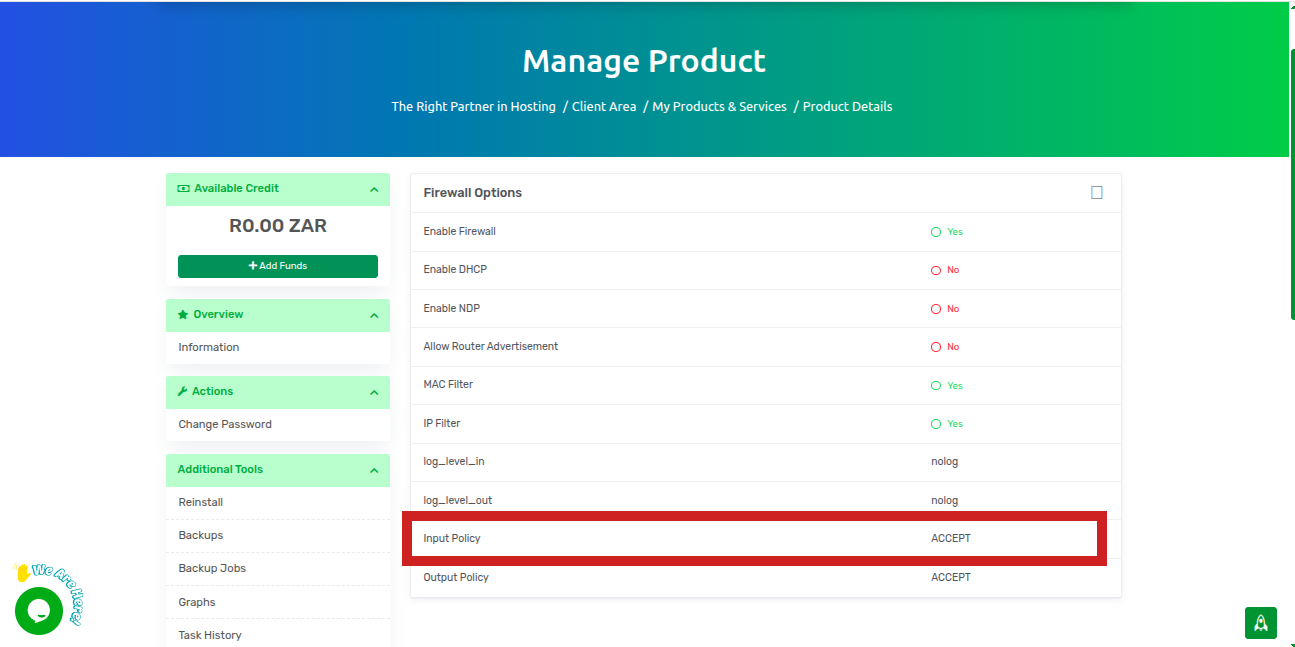
How to change the input policy to allow for SSH login
1 Log into Client area, On the dashboard, click on services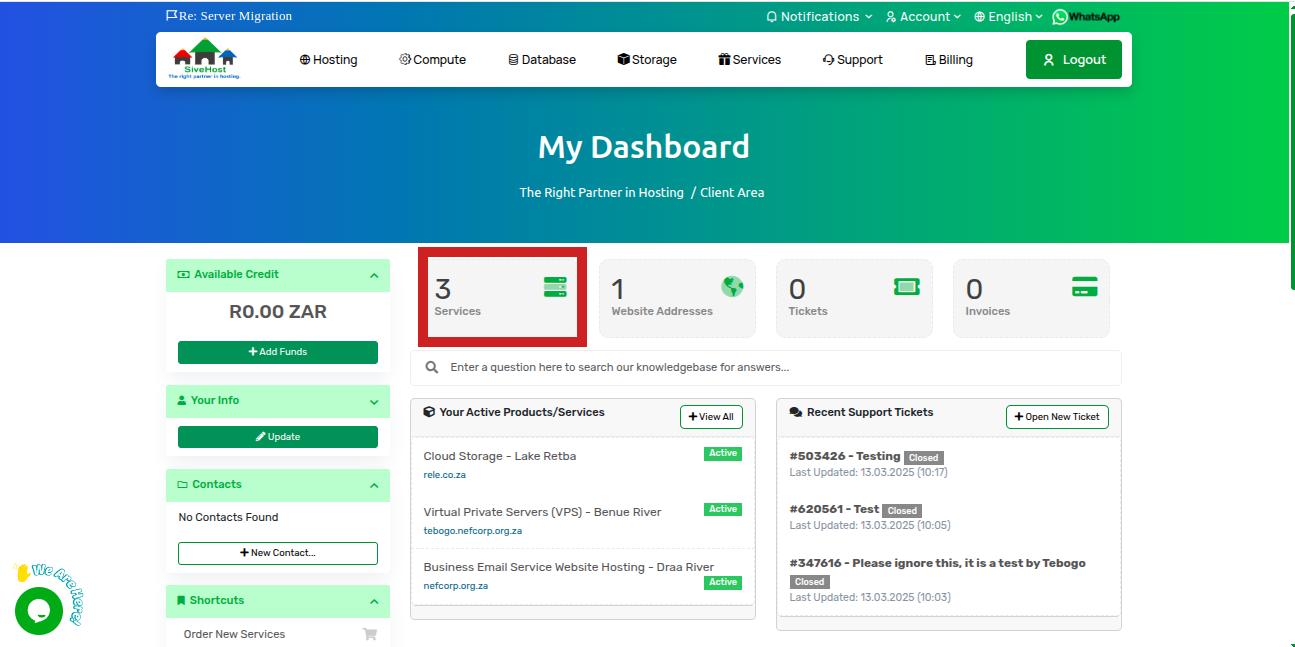
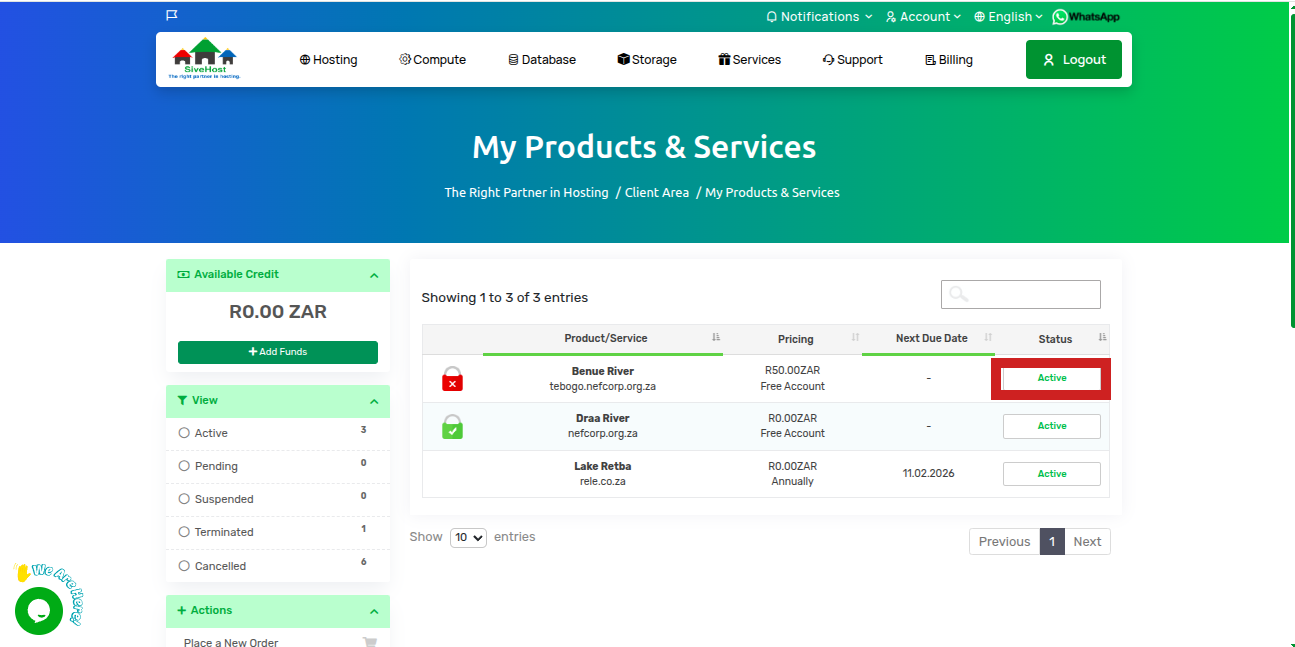
2 On the services page(My products & services), locate the VPS you want to access and click on Active
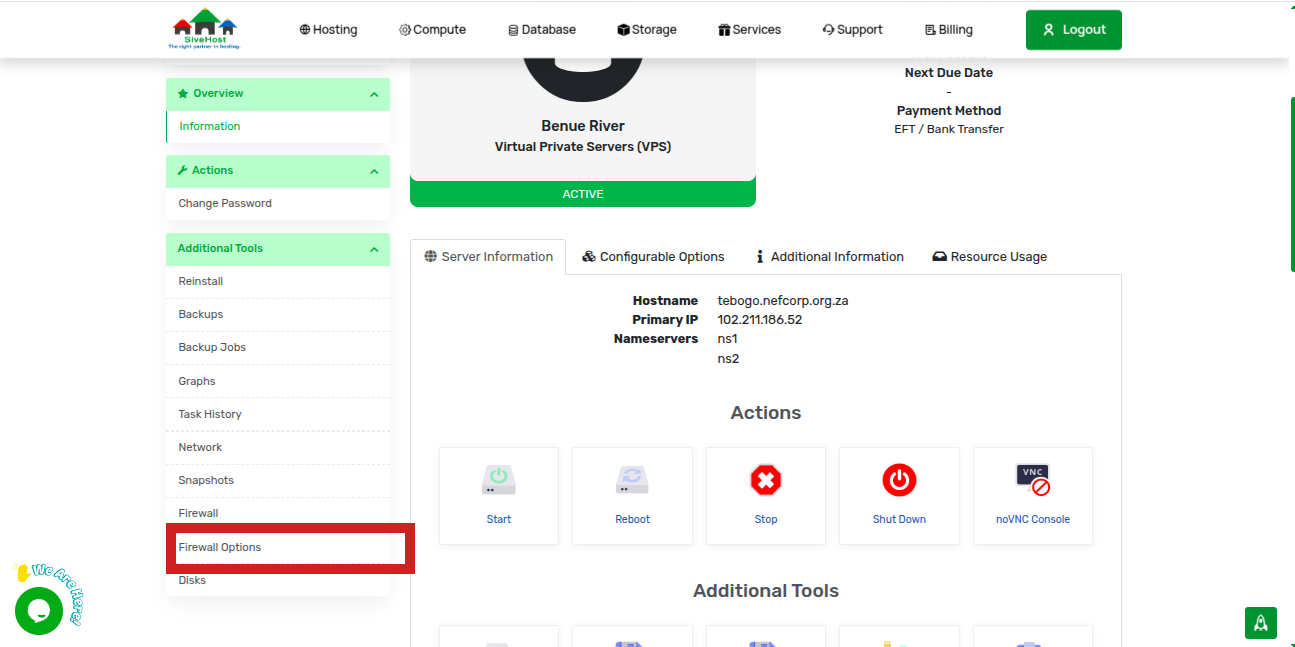
3 In the VPS page, on the left menu, scroll down a bit and click on firewall options under additional tools
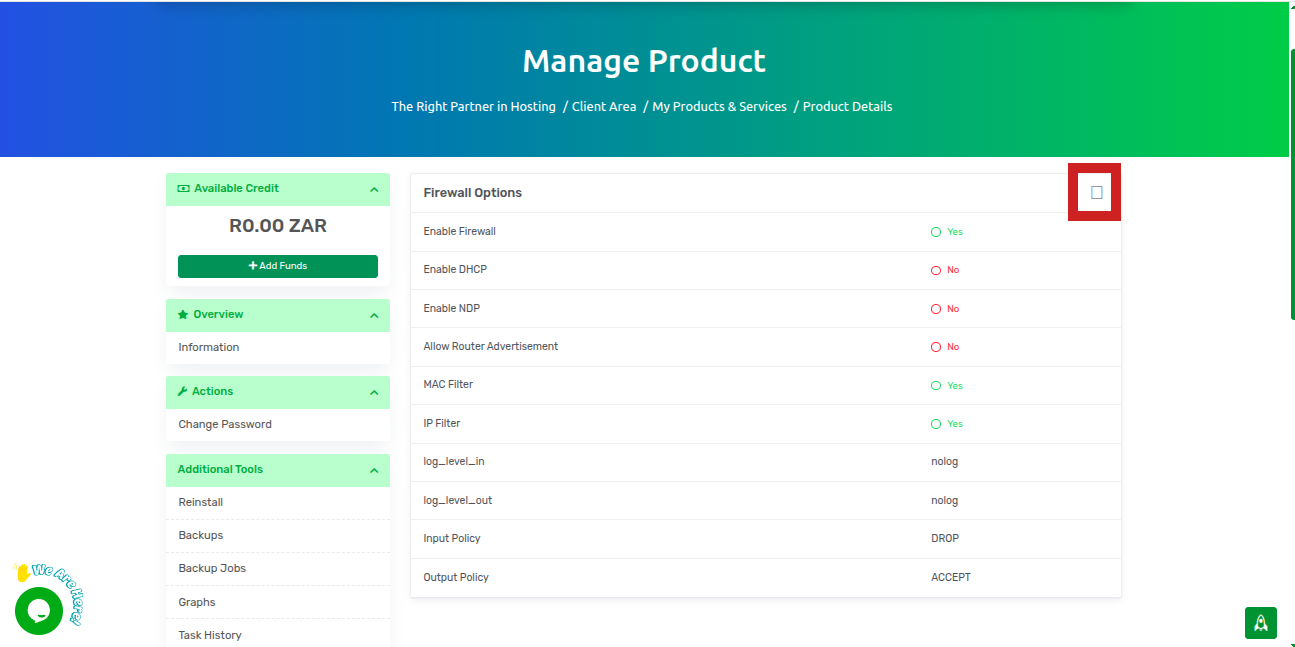
4. On the firewall options, click on the square box on the top right of the firewall option menu to edit the firewall option
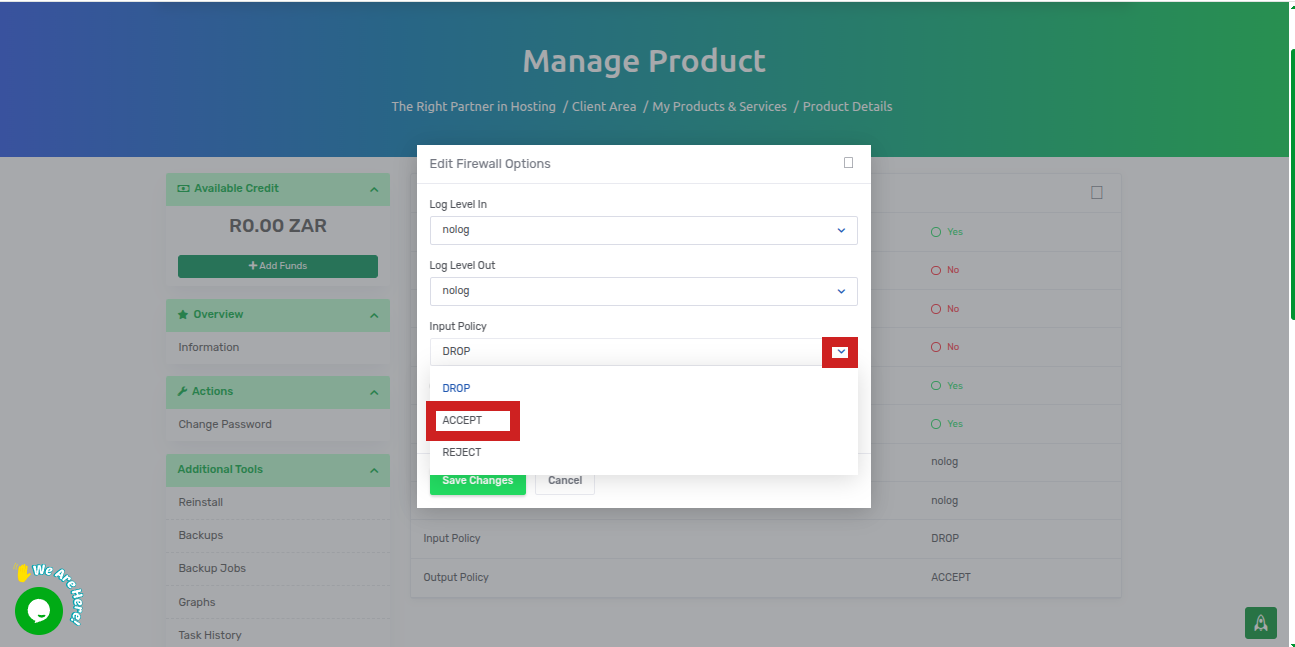
5. In the firewall edit window, click on the dropdown menu on input policy and select ACCEPT
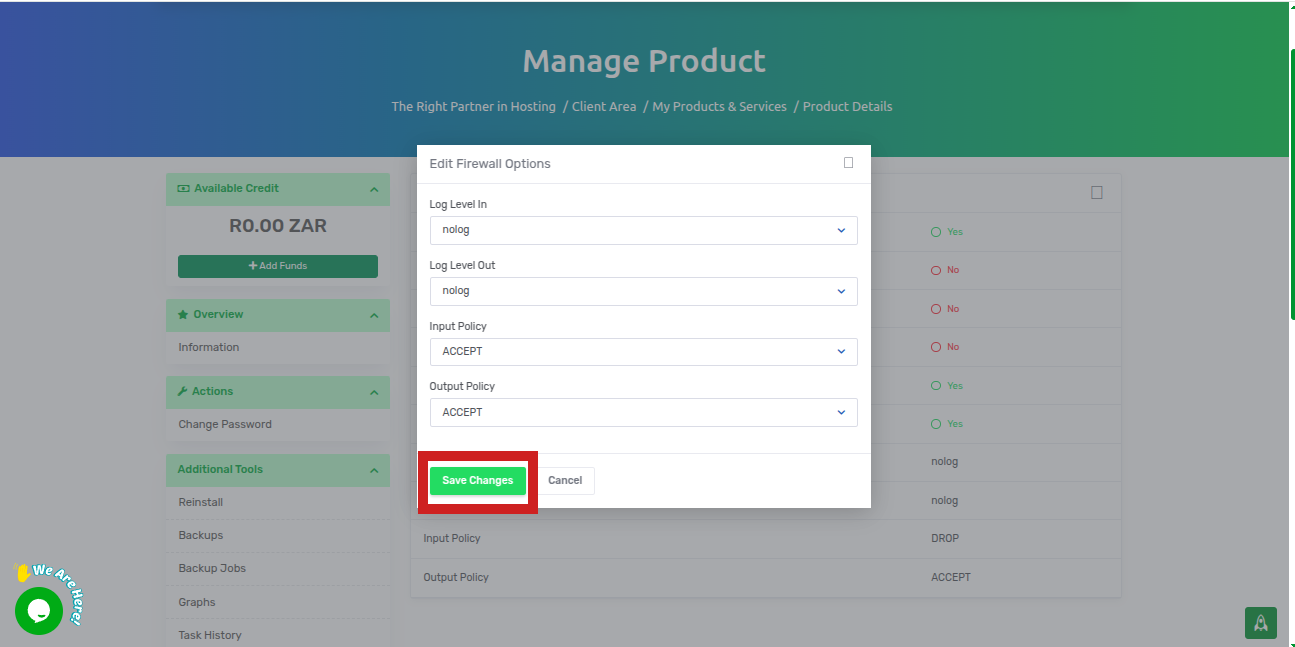
6. Click on save changes to apply the change.
7 To confirm that your changes have been saved, you will see a pop-up message saying the firewall options have been updated successfully in the top right corner,
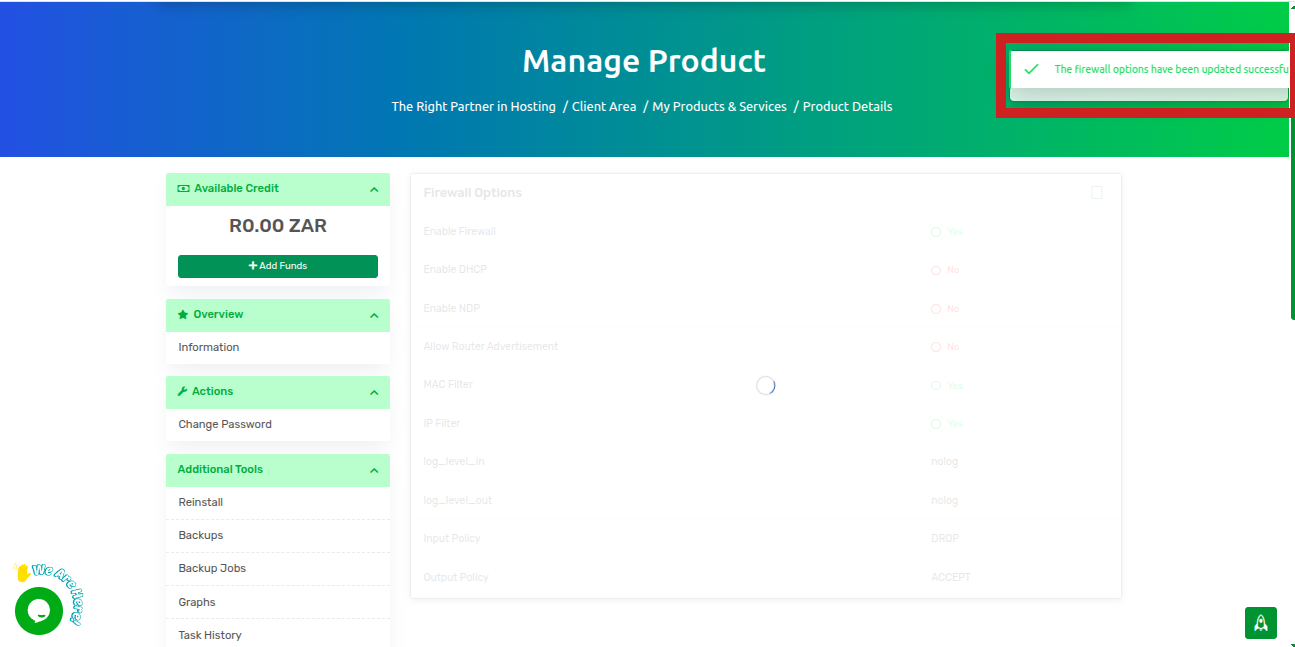
and the input policy will be changed from drop to accept