

How to Set Up a Payment Gateway (Bank Transfer)
Introduction
This guide explains how to configure the Bank Transfer payment gateway in PartnersHub. Once enabled, customers will be able to select Bank Transfer as their payment method when paying invoices.
Step 1: Navigate to PartnersHub
Log in to the PartnersHub Admin Area.
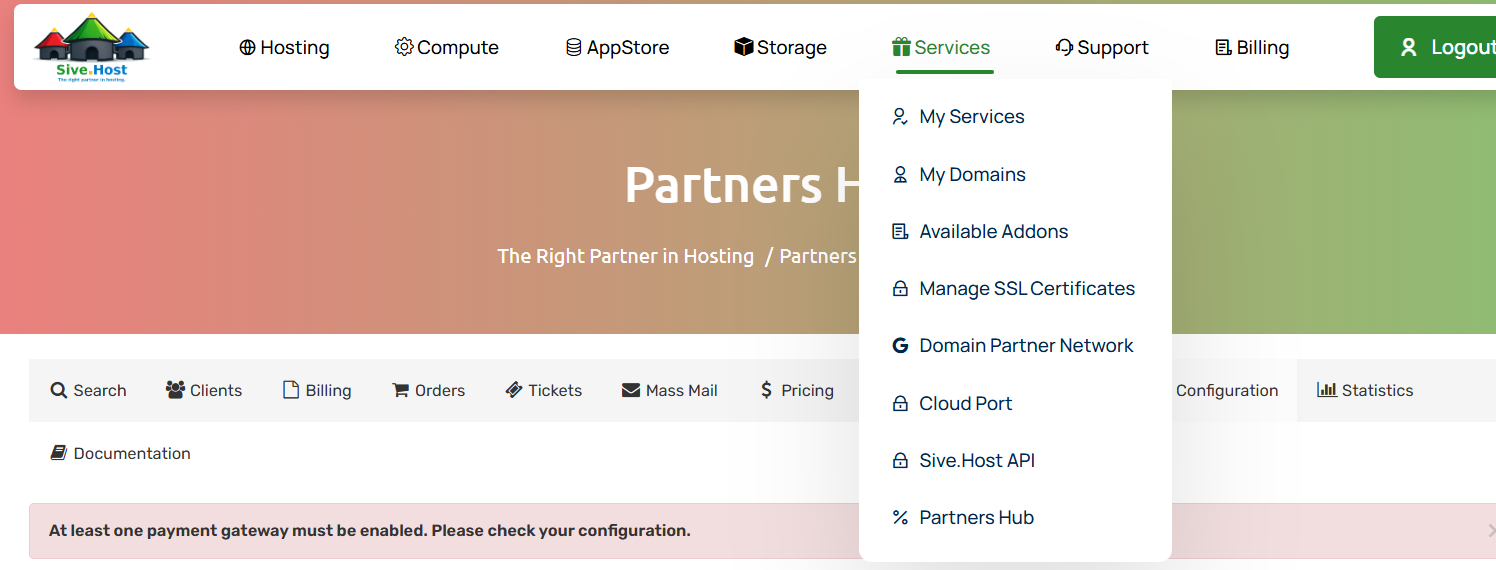
Step 2: Open Payment Gateways
From the navigation menu, go to:
Configuration → System Settings → Payment Gateways
Select Bank Transfer from the list of available payment gateways.
Image: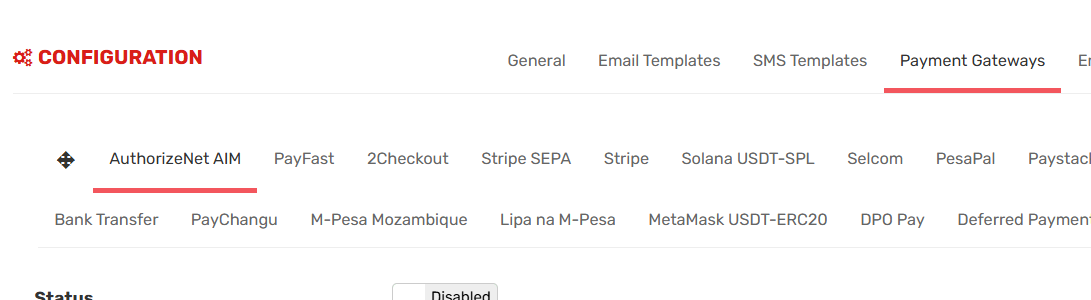
Step 3: Enable Bank Transfer
Locate the Status option and click Enabled to activate the Bank Transfer payment gateway.

Step 4: Configure Payment Instructions
Enter the banking details that customers will use when making payments.
Example:
- Bank Name
- Payee Name
- Branch Code
- Account Number

Step 5: Convert to ZAR
Under Convert To For Processing, select ZAR (South African Rand).
This ensures payments are processed using the South African Rand currency.

Step 6: Country Limitation
Use the Country Limitation field if you want to restrict the Bank Transfer payment gateway to specific countries.
Leave this field blank to make it available in all countries.

Step 7: Save Changes
Review the configuration and click Save Changes to activate the payment gateway.

Conclusion
You have successfully configured the Bank Transfer payment gateway in PartnersHub. Customers can now select Bank Transfer when paying invoices, and your banking details will be displayed for manual payment.
